Tour
What you will be looking at.
Every main screen, in roughly the order you meet them, and what each one is there to tell you. Tap any screenshot to see it full size.
The main screen
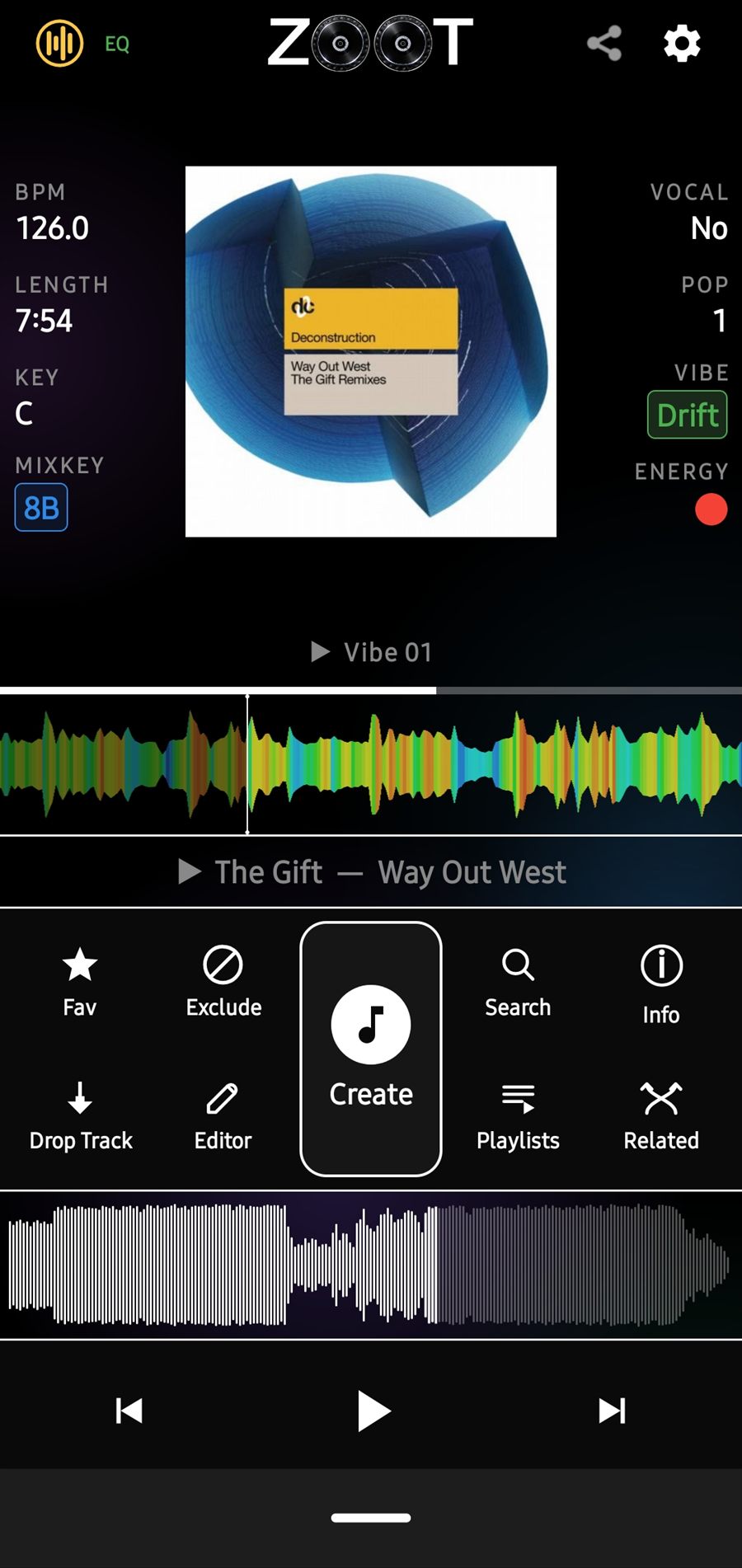
The track that is playing, with the numbers a DJ reads before deciding what comes next. They sit either side of the artwork so you can take them in at a glance.
Left of the artwork: what it is
- BPM
- The tempo. How far the next track has to be pitched to meet it.
- Length
- How long you have before you need the next one ready.
- Key
- The musical key, for anyone who thinks in notes.
- Mixkey
- The same key as a wheel code. One number up or down is a safe mix.
Right of the artwork: how it plays in a room
- Vocal
- Yes, Mix or No. So two vocals do not end up fighting each other.
- Pop
- A score out of 10 for how much you reach for it, from plays and playlist adds.
- Vibe
- Where in a set the track belongs: Warm, Drift, Build, Peak or Cool.
- Energy
- A coloured dot, green for calm through to red for flat out.
Below that: the set you are in, a scrolling waveform coloured by bass, mids and highs, the button pad, and a second waveform to skip through the track.
Five ways to watch the track
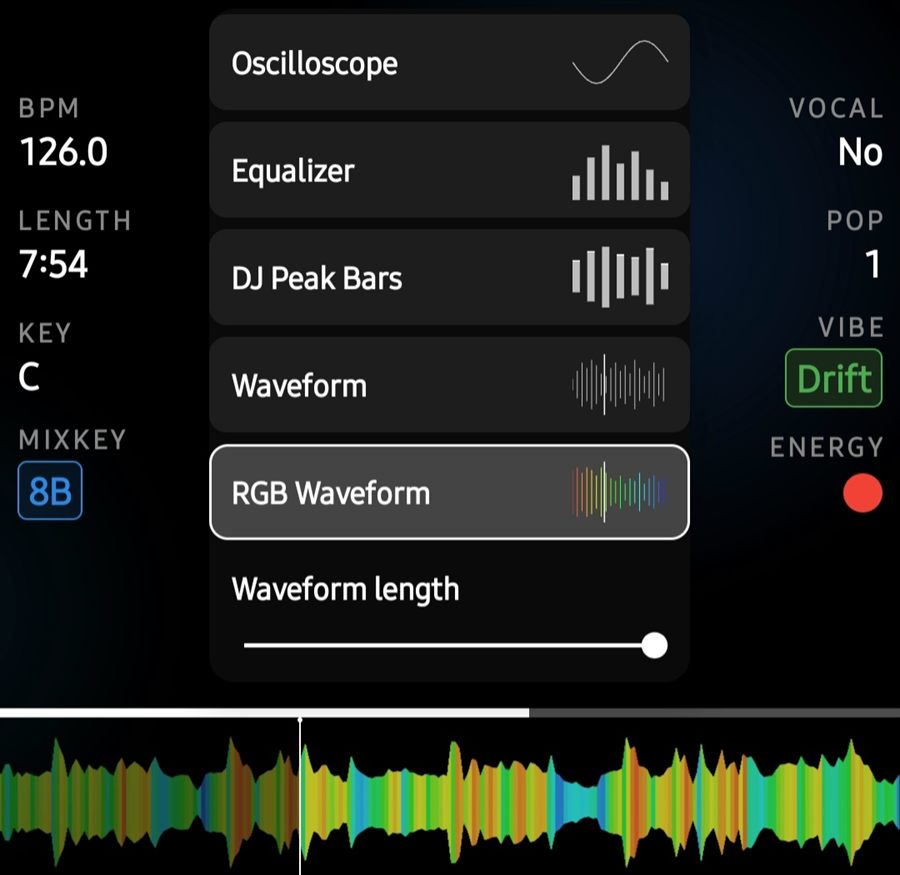
The strip under the artwork is the visualiser. Tap it and this menu opens over the screen; tap a style and it changes straight away. The slider at the bottom stretches the scrolling waveform so it shows more detail.
Pick the one that tells you what you need while you listen.
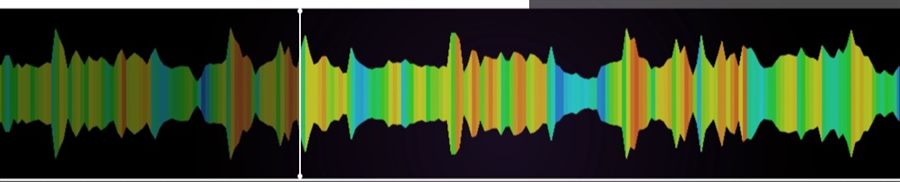
RGB Waveform. The track scrolling past, coloured by what is in it: red for bass, green for mids, blue for highs. You can see a breakdown coming before you hear it.
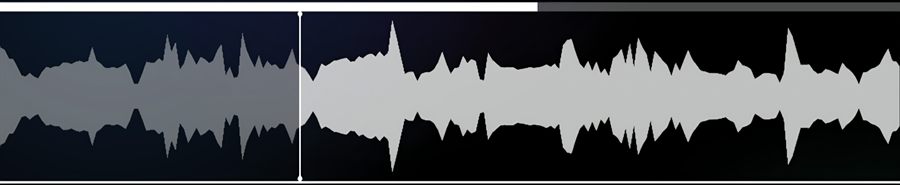
Waveform. The same scrolling shape in one colour, with the part already played dimmed. Height is loudness.
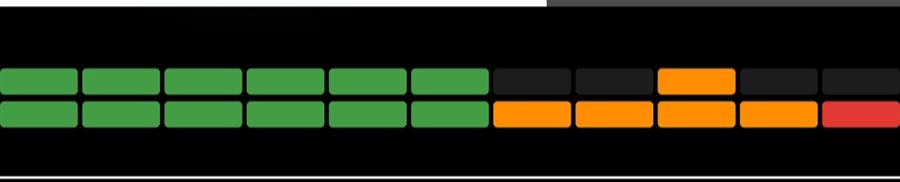
DJ Peak Bars. Level meters like the ones on a mixer, green through orange to red.
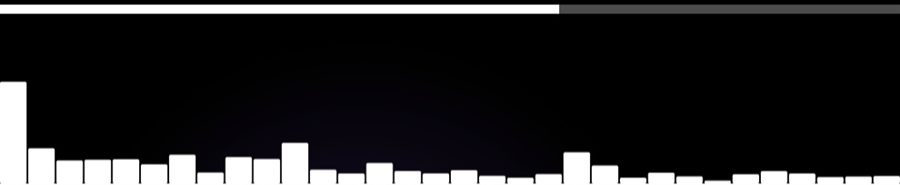
Equalizer. Bars for each band of the sound, bass on the left, moving with the music.

Oscilloscope. A single line tracing the sound as it plays.
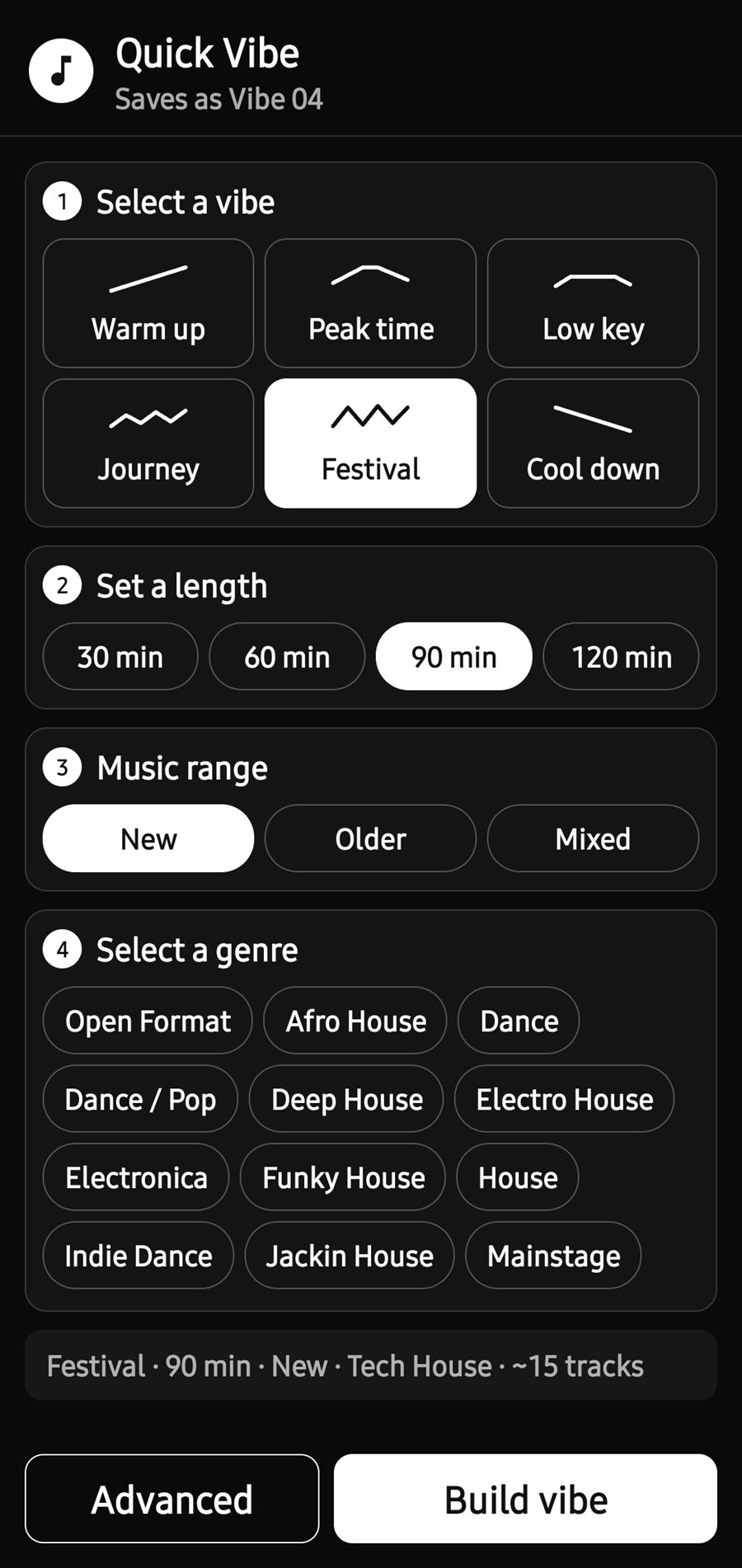
Quick Vibe
Four taps and you have a set to start from. Pick the energy flow, how long you are playing, whether you want your newer or older music, and a genre.
The line at the bottom tells you what you are about to get before you build it.
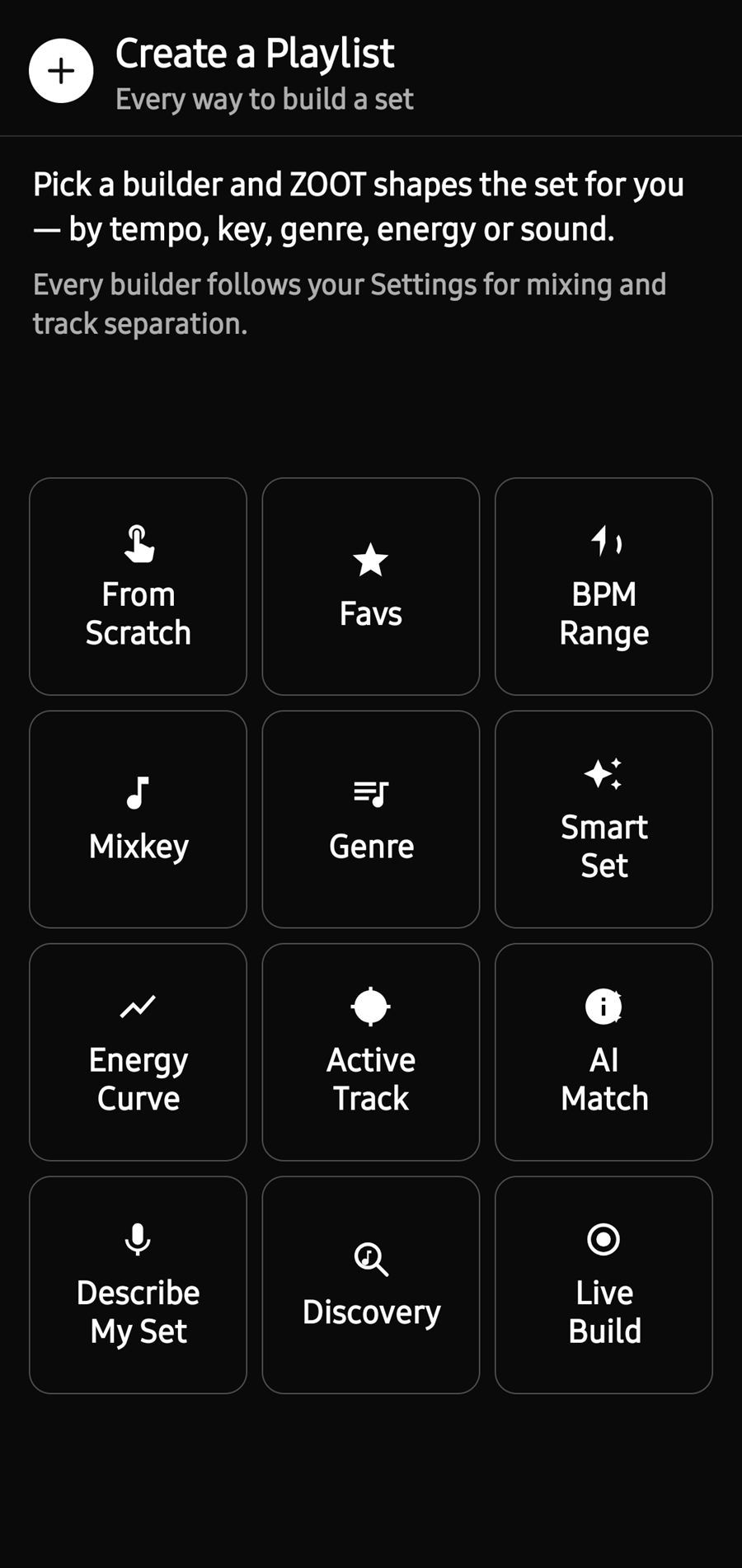
Every way to build a set
Behind Advanced there are twelve builders, for the days Quick Vibe is not specific enough. Build by tempo, by key, by genre, by the shape of the night, around the track that is playing, from a sentence, or from tracks you have neglected.
Each one follows the same mixing and separation rules you set once in Settings.
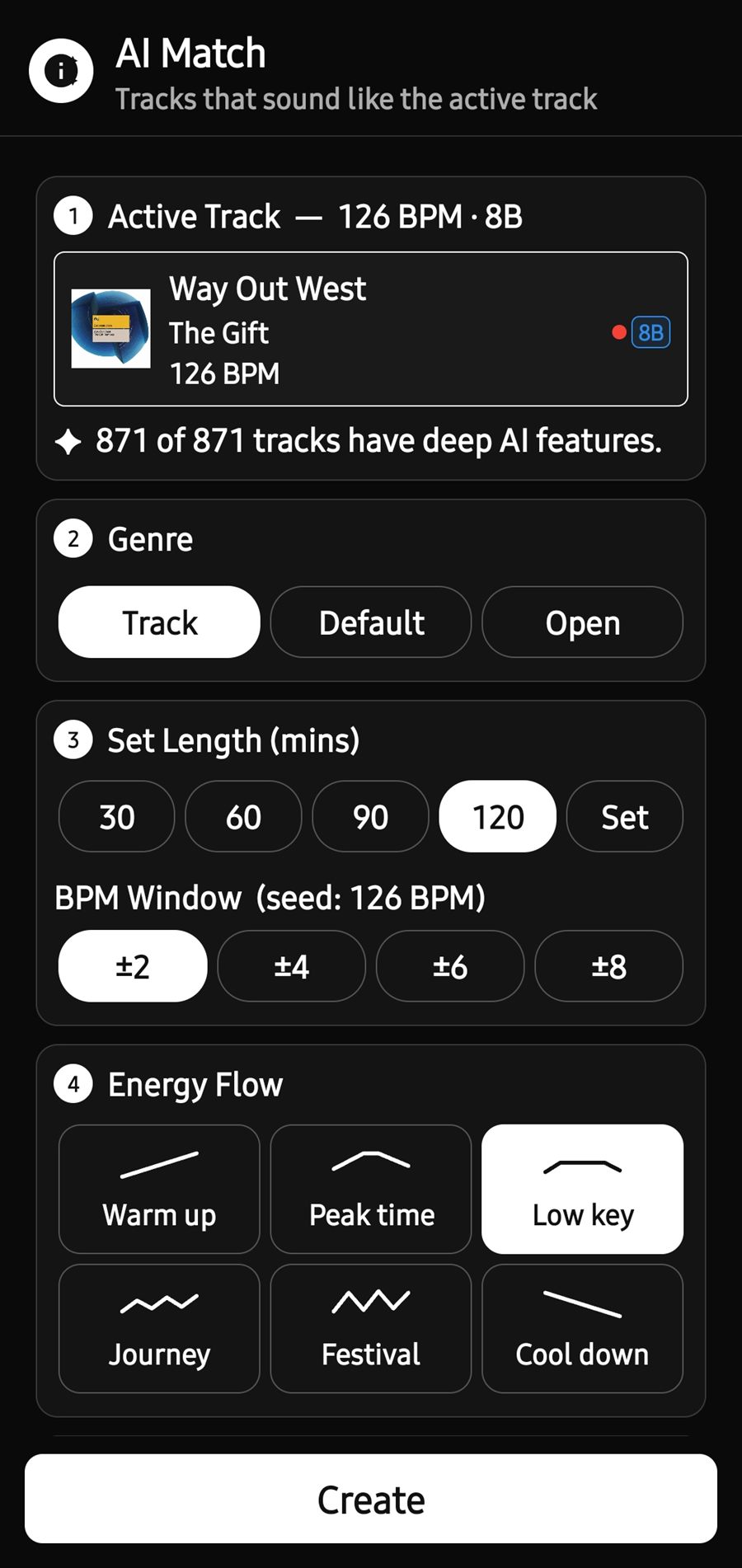
AI Match
You have one track that is exactly the sound you want, and need two hours more of it. AI Match starts from the track that is playing and builds a set of tracks that sound like it.
You choose how tightly to hold the tempo and which energy flow the set should follow.
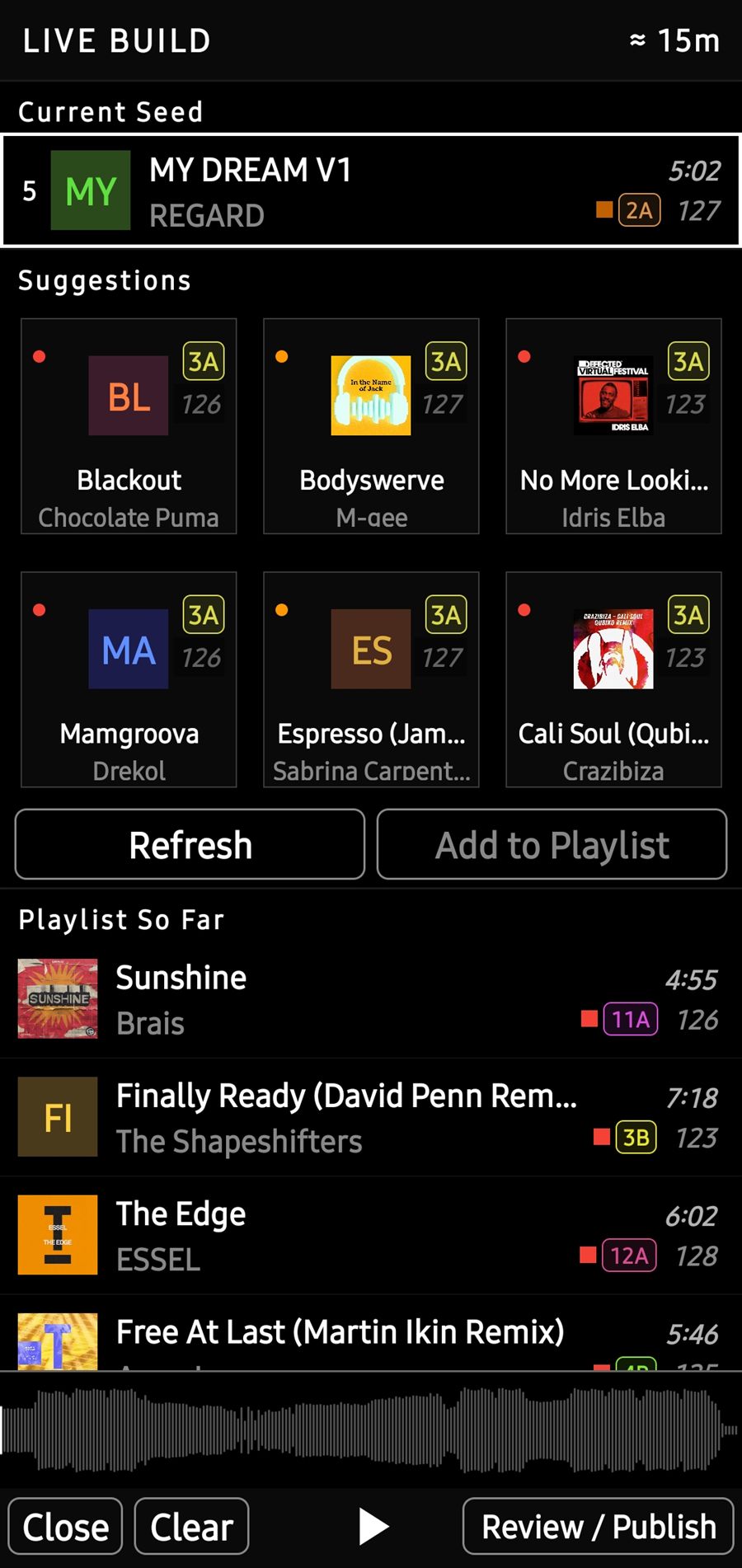
Live Build
For when there is no plan, or the plan stopped working. The track you are on sits at the top, with six suggestions for what could follow it, each showing its Mixkey and tempo.
Pick one, and it joins the set underneath. The running time is in the corner, so you know how much you have built.
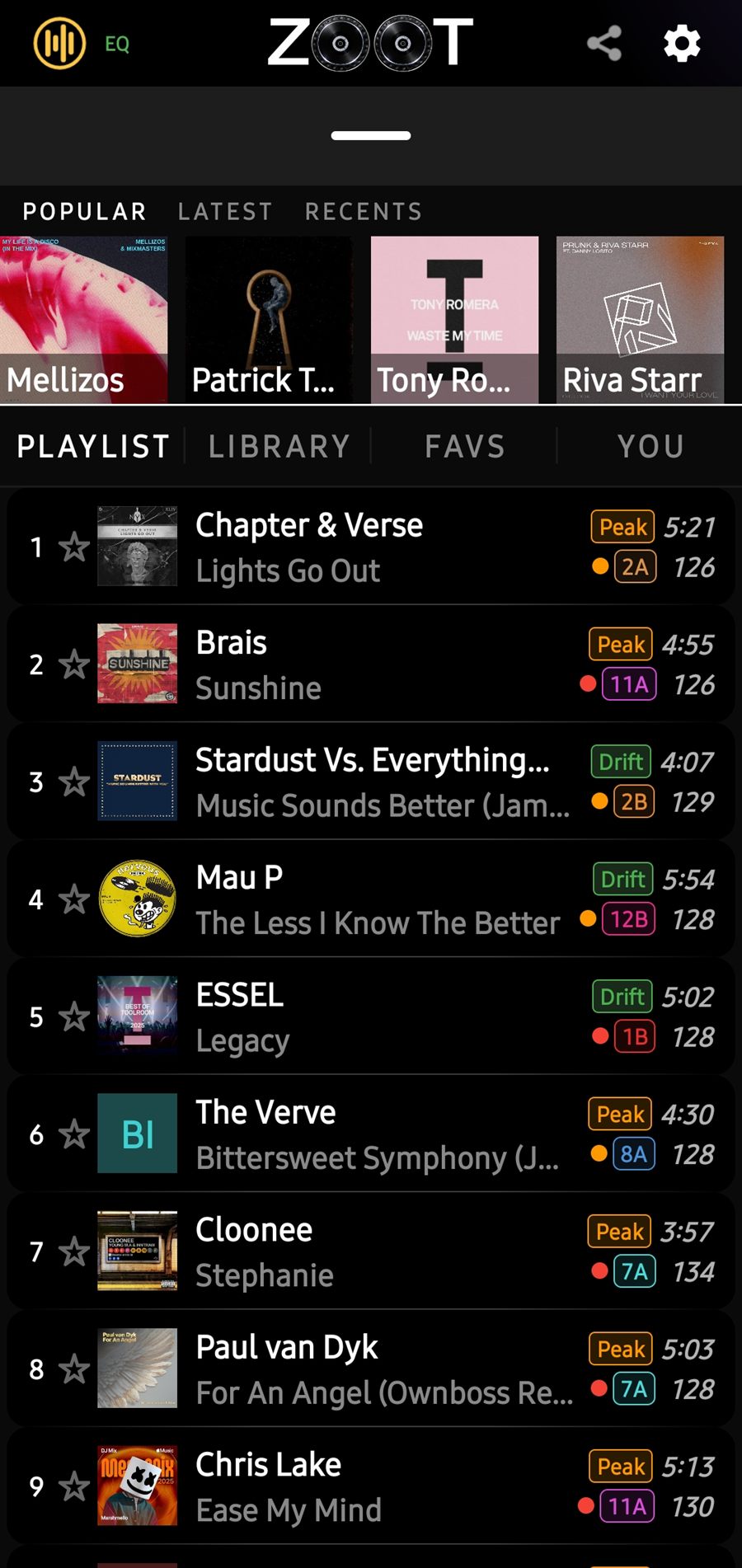
Your set, as a list
The set you are playing, in order. Every row carries the vibe, the energy dot, the Mixkey, the tempo and the length, so you can read the next three transitions without opening anything.
The strip above it holds your most played, latest and recent tracks. The tabs switch to your whole library, your favourites, and a mix built around your taste.
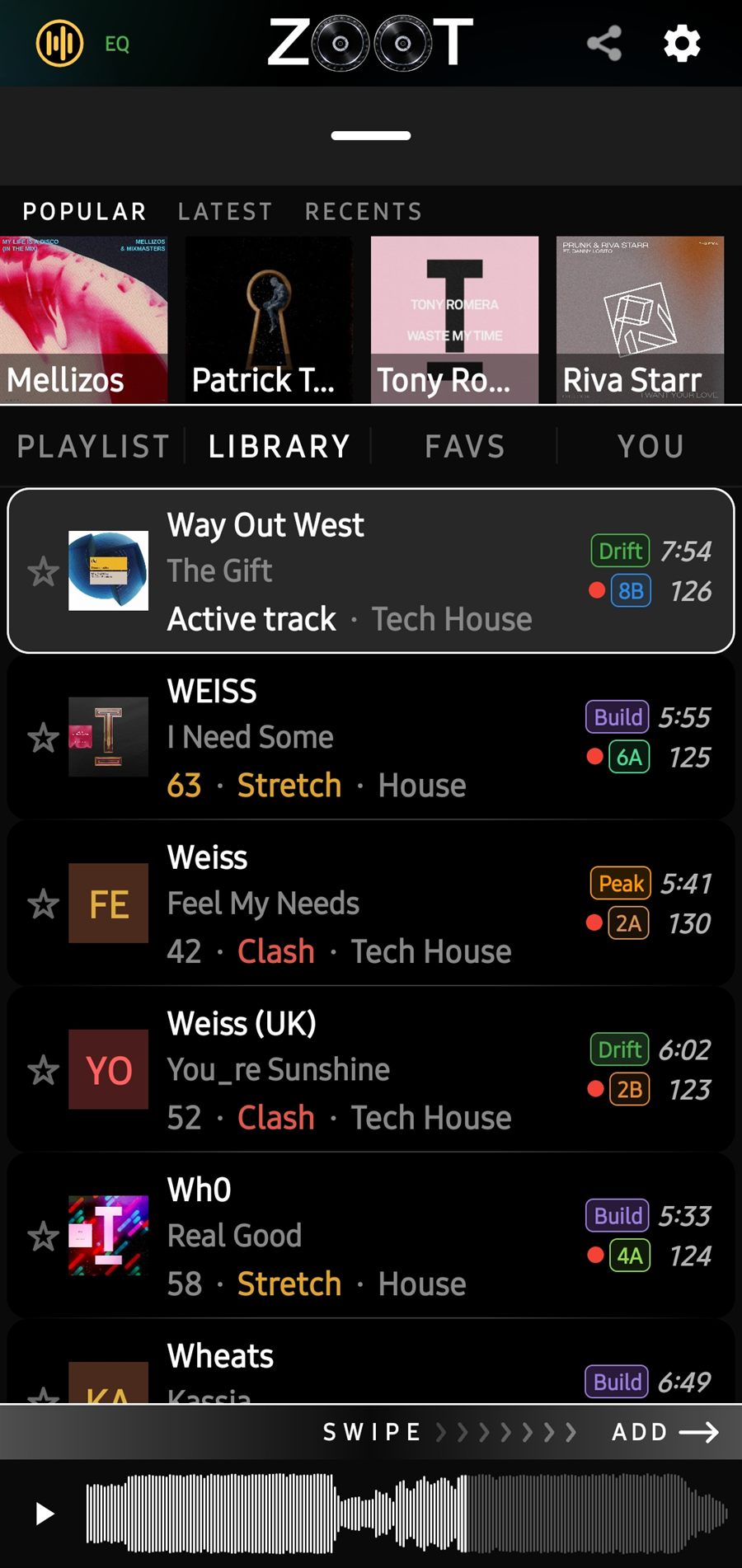
What follows this track?
With a track playing, every other track in your library is scored against it. The number is how well it follows; the word beside it is the key move, from Perfect through Stretch to Clash.
So you find out a track clashes here, on your phone, and not in front of a room. Swipe a row to add it to the set.
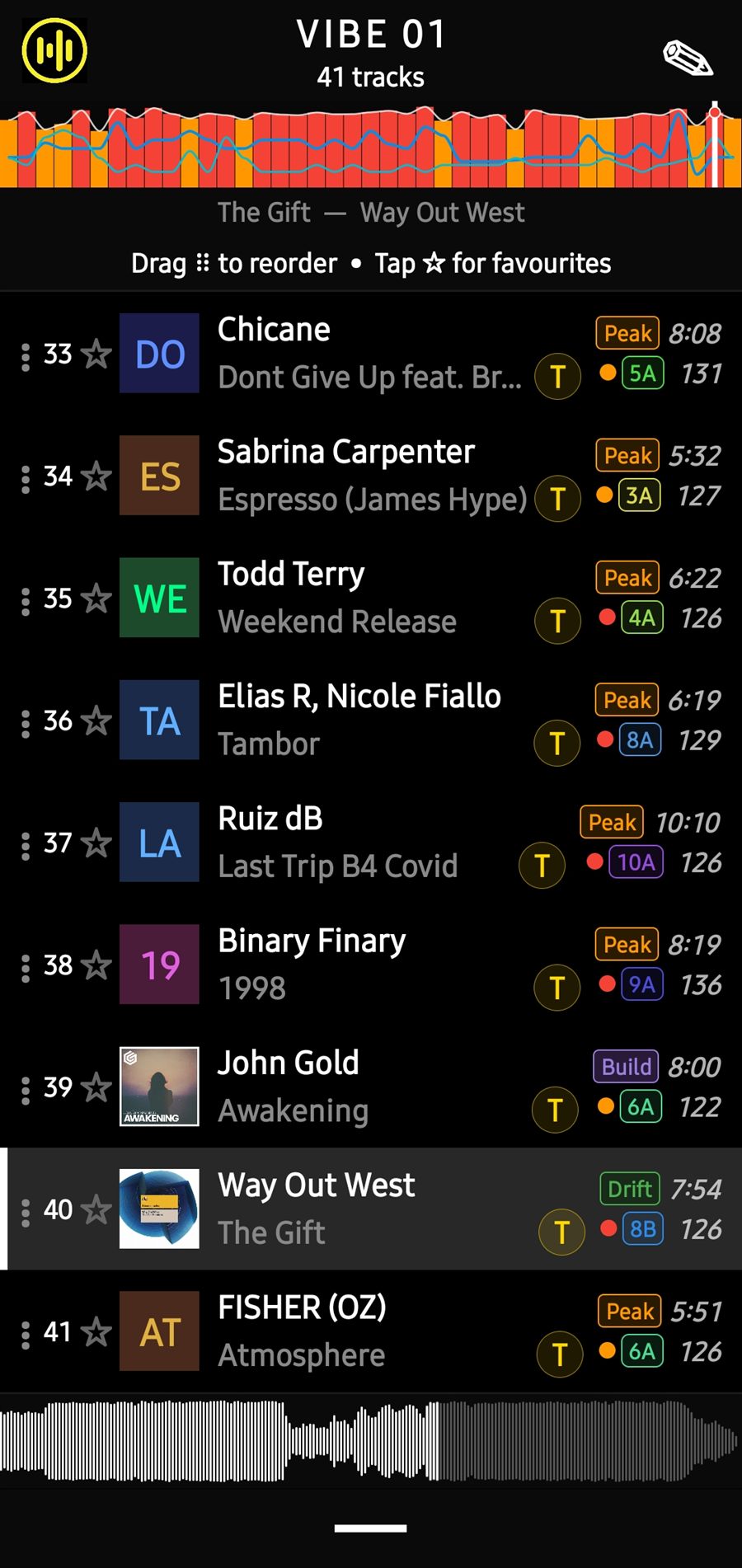
The editor
Where a built set becomes yours. Drag a track to move it, star the ones you want to keep hold of.
The coloured bar across the top is the energy of the whole set, track by track. If the night sags in the middle, you can see where before you play it.
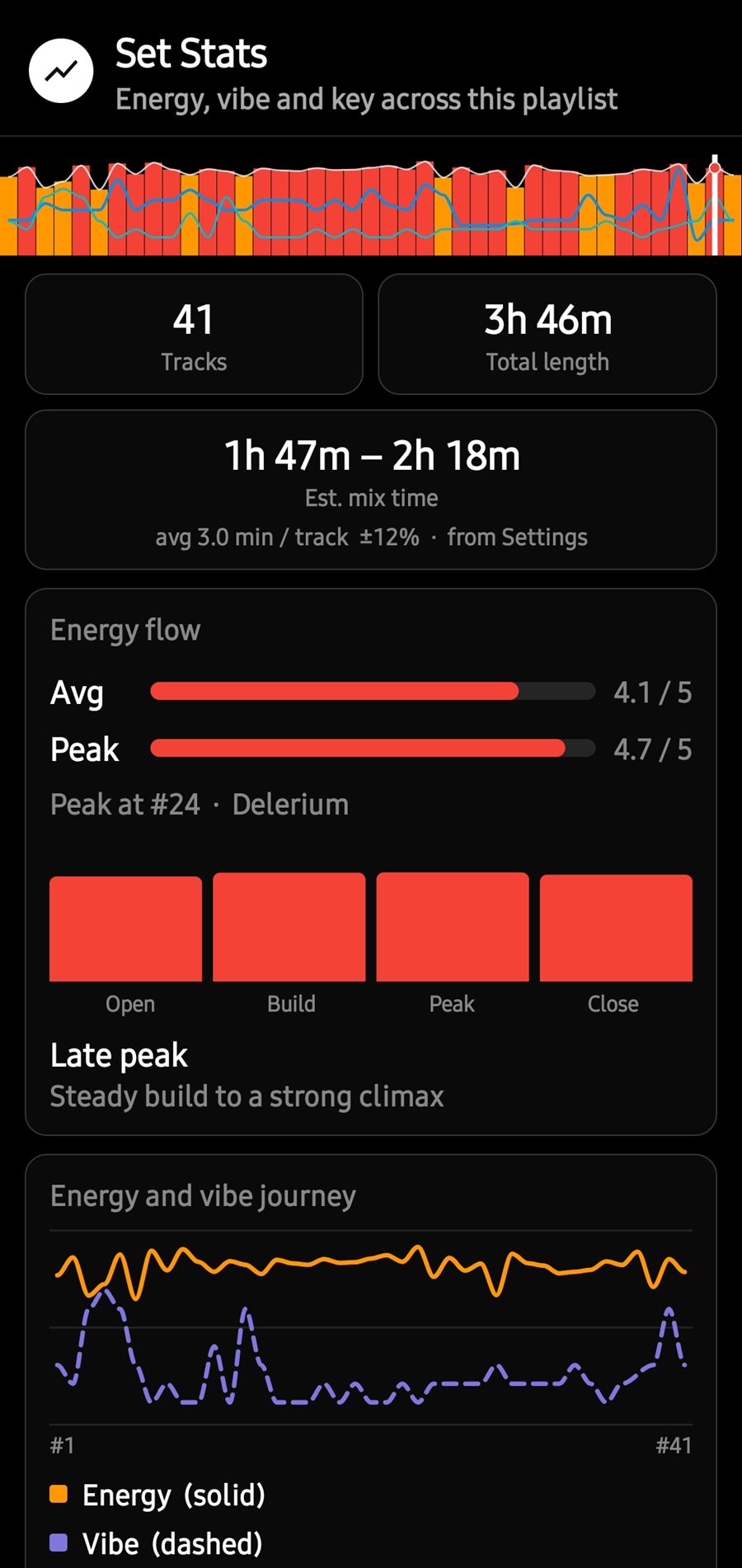
Set Stats
Will it fit the slot? Set Stats gives the total length of the tracks, and the more useful number under it: how long the set will really run once you are mixing in and out, worked out from your own average.
It also shows where the peak falls, and how energy and vibe move from the first track to the last.
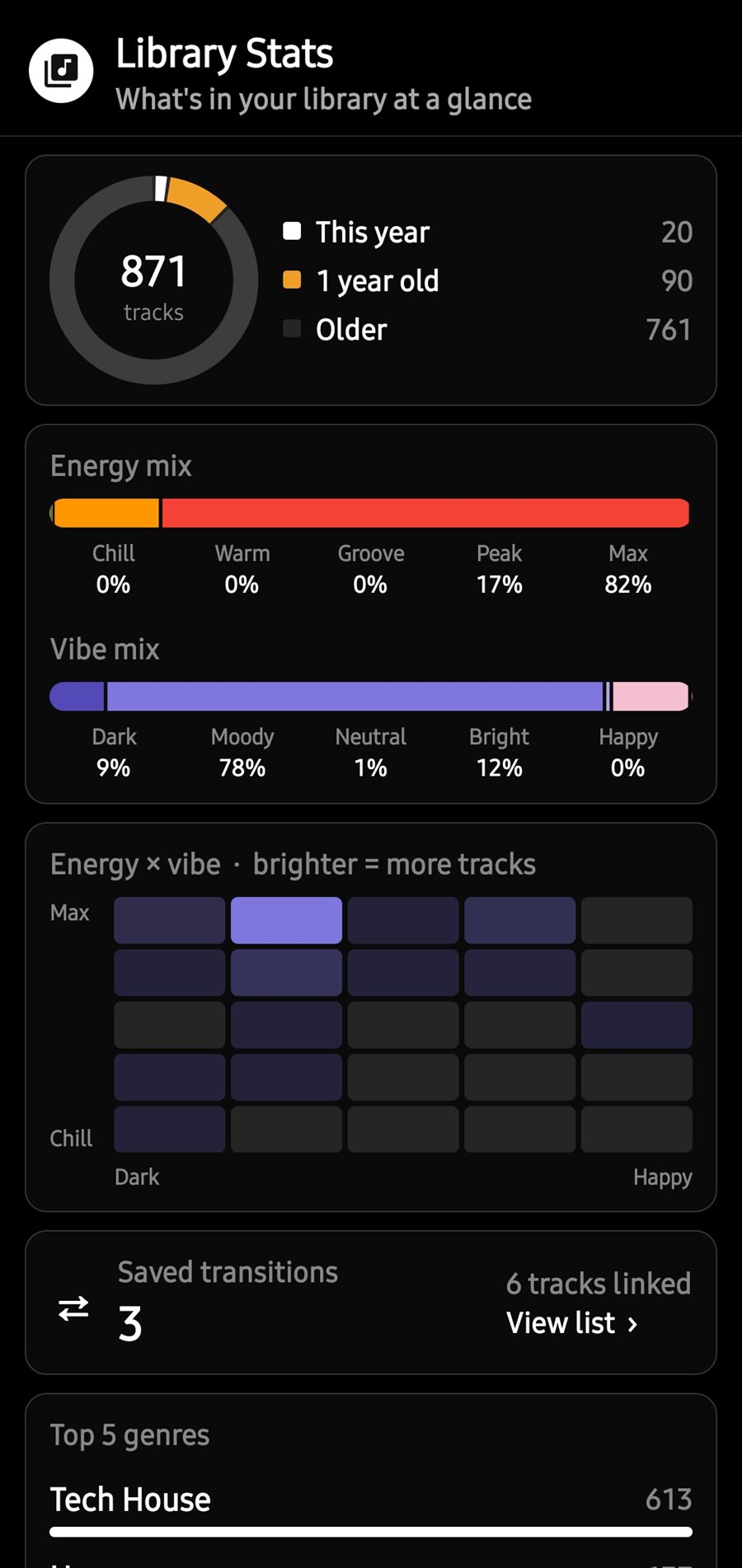
Library Stats
What you actually own, as opposed to what you think you own. How much of it is new, how the energy and vibe are spread, and which genres dominate.
If nine tenths of your library is peak-time, that explains why your warm-ups are hard to build.
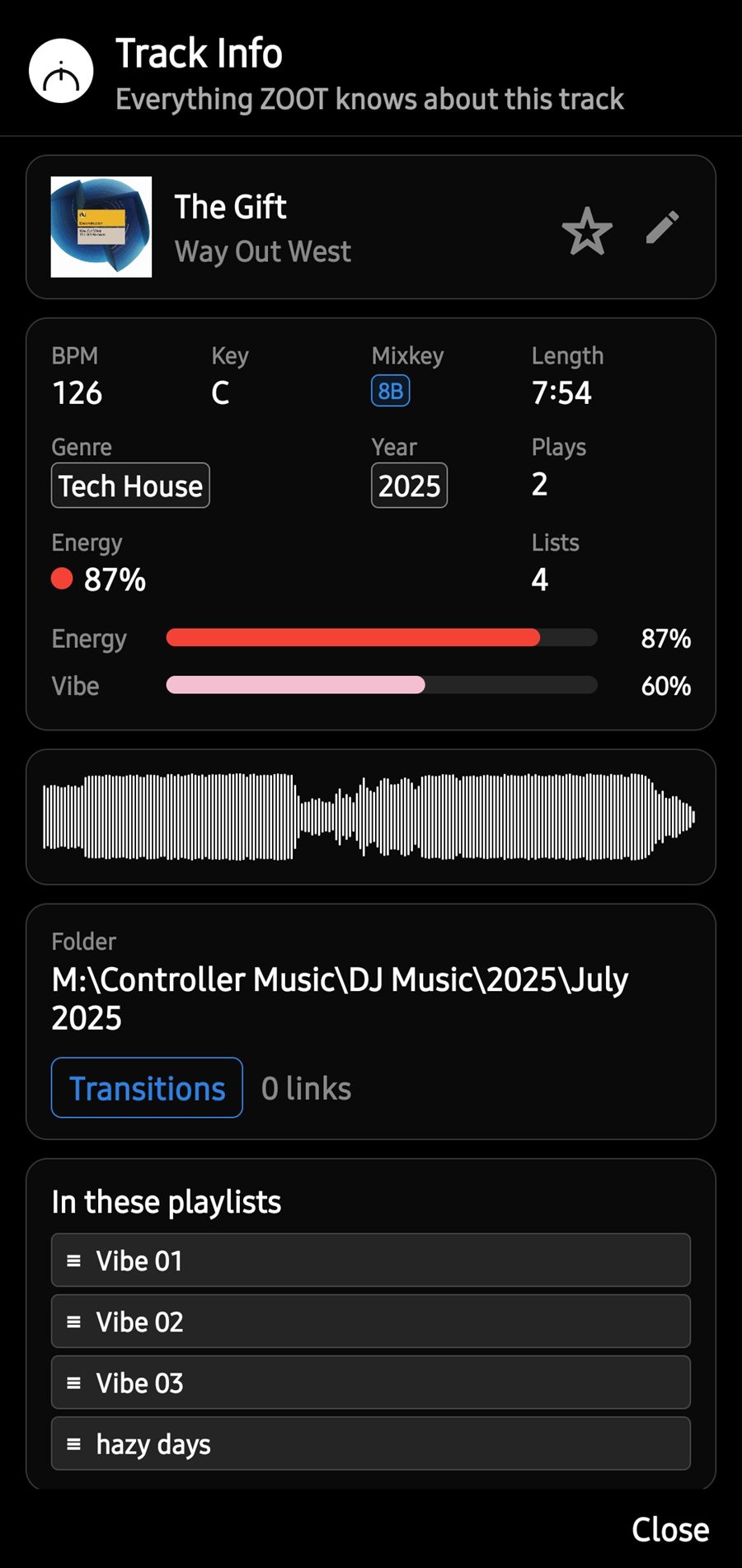
Track Info
Everything ZOOT knows about one track: tempo, key, energy, vibe, how often you have played it, where the file lives, and every set it is already in.
Useful when a track keeps turning up and you want to know why.
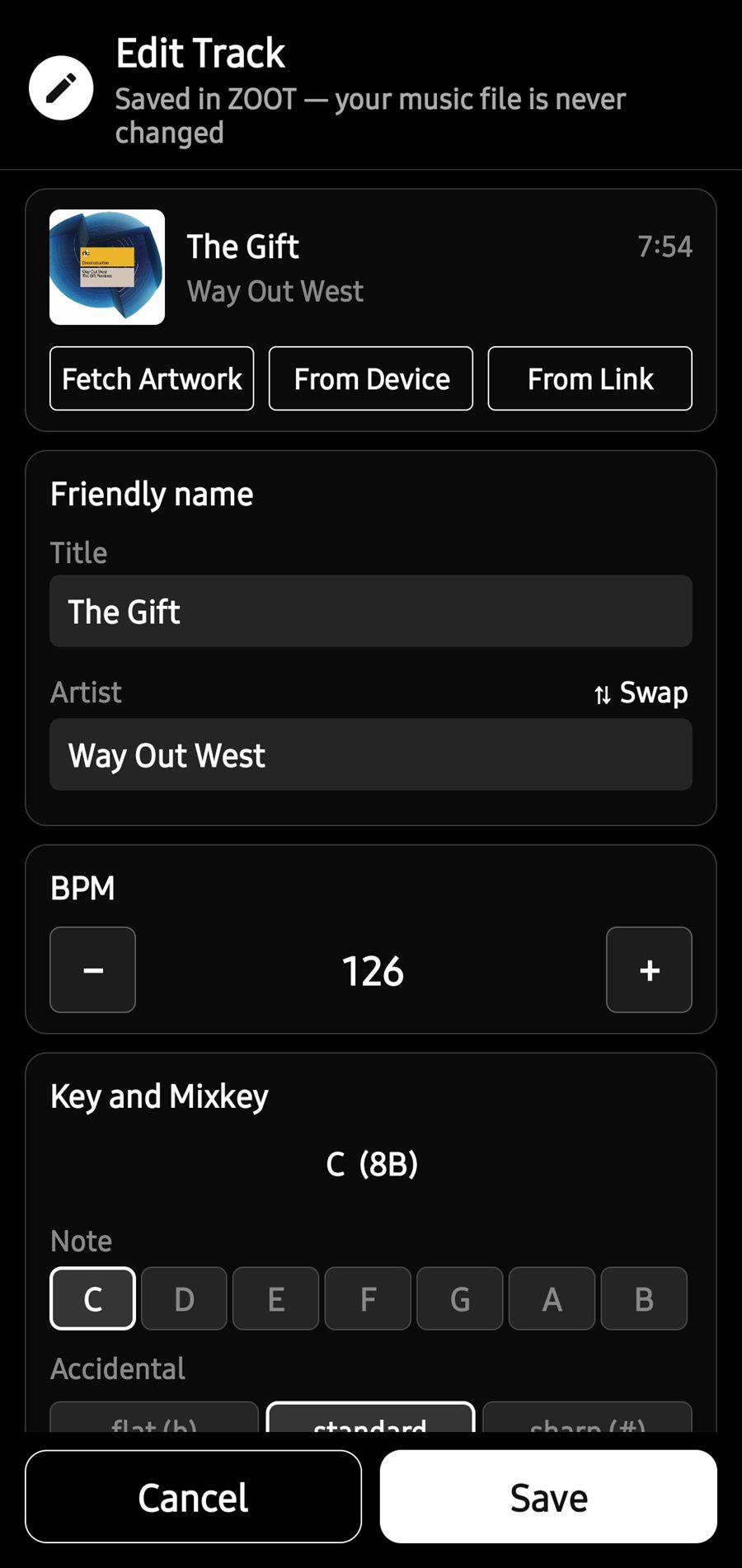
Edit Track
The title is wrong, the artwork is missing, or you know the key better than any software does. Fix it here.
Your changes are kept inside ZOOT. The music file itself is never altered, so nothing you do here can upset your DJ software.
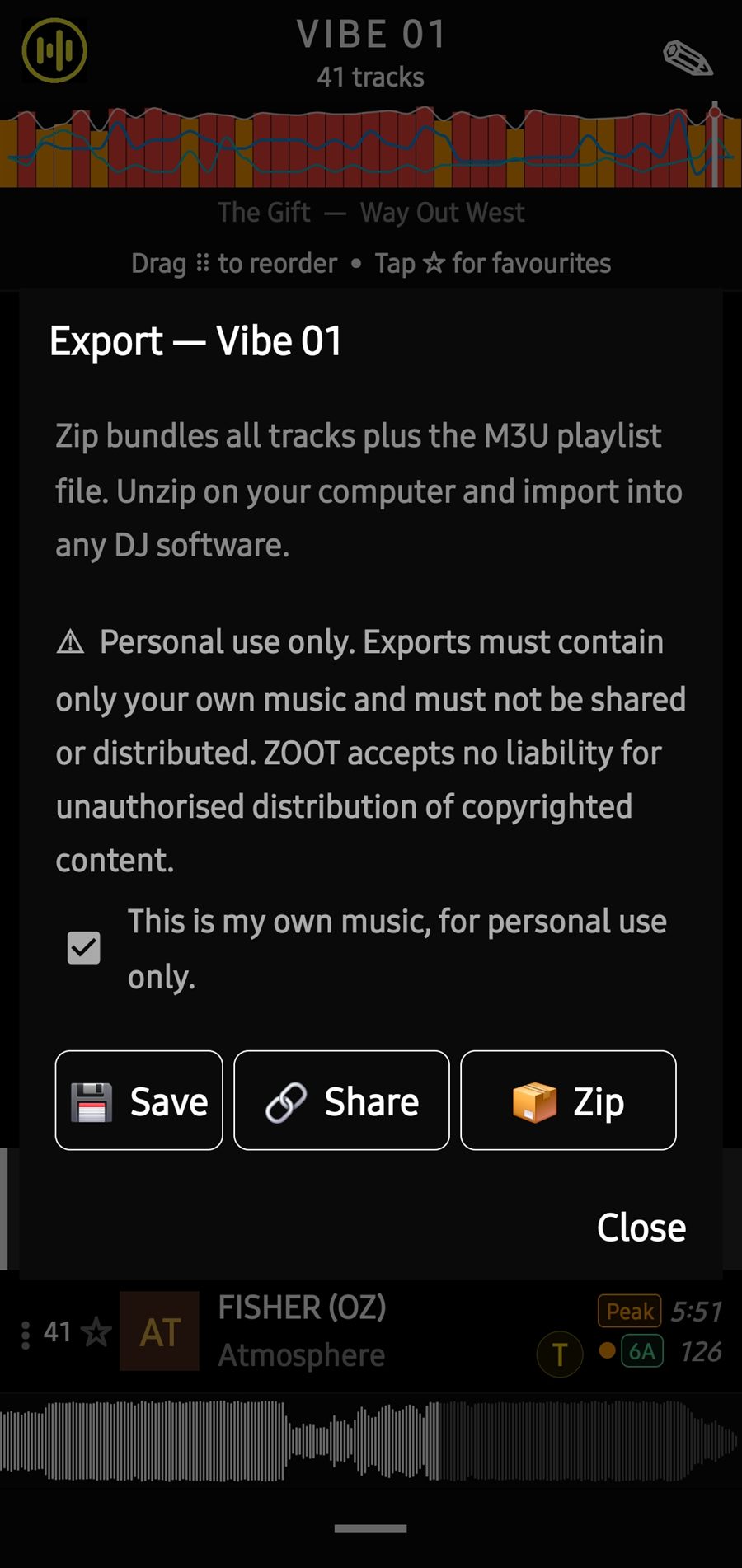
Export
The set is finished on your phone, and your decks are plugged into something else. Save the playlist file, share it, or zip the playlist together with its tracks to unpack on your computer.
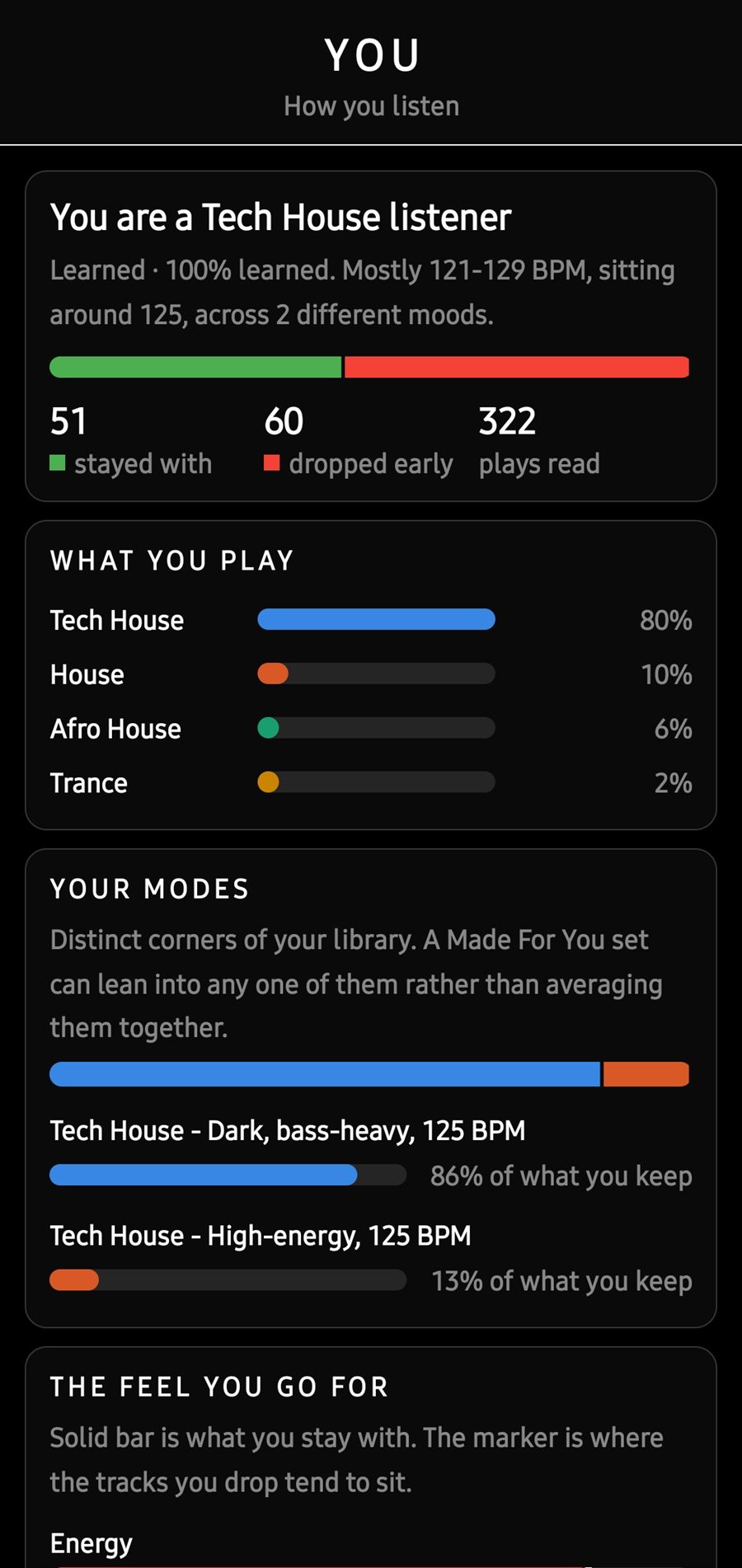
You
What your listening says about you, as opposed to what you would say. Which genres you really play, and the distinct corners of your library you keep going back to.
It only appears if you turn learning on, and it keeps the feel of what you play, never a list of your tracks.
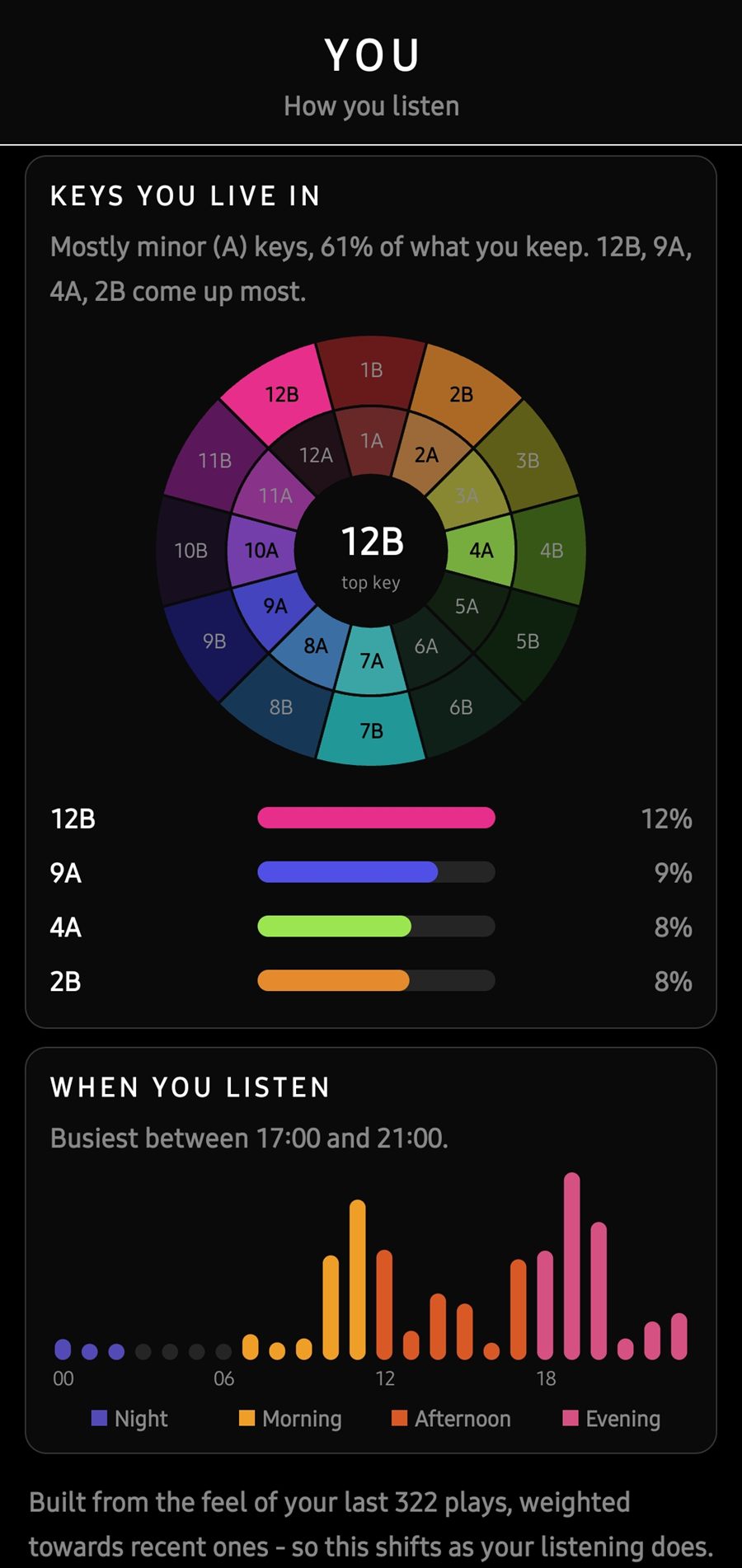
The keys you live in
The same screen, further down. The keys your choices keep landing on, drawn on the wheel, and the hours of the day you do most of your listening.
If most of what you keep sits in four keys, that is worth knowing the next time you buy music.